
Set it and forget it! With Scheduled Reports, you can automatically send dashboard reports to your team on a daily, weekly, or monthly basis.
Overview
The Scheduled Reports feature allows you to automate the delivery of your HR Dashboard reports directly to your team's inbox. Reports are delivered in XLS (Excel) format, making it easy to analyze and share data.
Getting Started
Accessing Scheduled Reports
1. Navigate to Insights -> Ai Reports -> Dashboards from the left navigation bar
2. Open any dashboard (e.g., HR Dashboard)
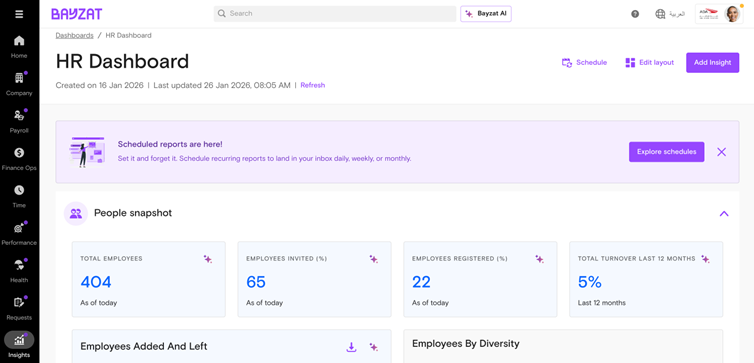
3. Click the Schedule button in the top-right corner of the dashboard
You'll also see a promotional banner announcing "Scheduled reports are here!" with an Explore schedules button for quick access.
Creating a New Schedule
Step 1: Open the Schedule Report Delivery Modal
Click Schedule or Explore schedules to open the scheduling interface.
Step 2: Create a New Schedule
1. Click the New button next to "Schedules" in the left panel
2. A new draft schedule will appear in the list
Step 3: Configure Your Schedule
Fill in the following details:
Schedule Name
Give your schedule a memorable name (e.g., "HR Report Weekly", "Monthly Payroll Summary")
Recipients
• Enter email addresses of team members who should receive the report
• Separate multiple email addresses with commas
• Example: hradmin@company.com, hrexecutive@company.com
Delivery Frequency
Choose how often you want the report delivered:
| Frequency | Options | Delivery Time |
| Daily | Every day | 7:00 AM Dubai time |
| Weekly | Select day of week (Monday-Sunday) | 7:00 AM Dubai time |
| Monthly | Select day of month (1st-31st) | 7:00 AM Dubai time |
Step 4: Save Your Schedule
Click the Schedule report button to activate your schedule.
Report Format
All scheduled reports are delivered in XLS (Excel) format, which allows recipients to:
• Open and view data in Microsoft Excel or Google Sheets
• Apply filters and sorting
• Create additional charts and analysis
• Share with stakeholders
Managing Existing Schedules
Viewing Your Schedules
All your schedules appear in the left panel of the Schedule Report Delivery modal. Each schedule shows:
• Schedule name
• Frequency and timing (e.g., "Weekly Monday at 7:00 AM")
• Status (Draft or Active)
Duplicating a Schedule
To create a similar schedule with minor changes:
1. Hover over an existing schedule
2. Click the Duplicate icon
3. Modify the duplicated schedule as needed
Deleting a Schedule
To remove a schedule:
1. Select the schedule from the left panel
2. Click the Delete button (trash icon) at the bottom of the form
Best Practices
1. Use descriptive names: Name your schedules clearly so you can easily identify them later (e.g., "Weekly HR Metrics - Leadership Team")
2. Consider your audience: Schedule reports to arrive before key meetings or at the start of the business day
3. Start with weekly: If you're unsure about frequency, weekly reports provide a good balance of timely updates without overwhelming recipients
4. Review recipient lists: Periodically check that the right people are receiving reports, especially after team changes
Frequently Asked Questions
Q: What time are reports delivered?
A: All reports are sent at 7:00 AM Dubai time (GST/UTC+4).
Q: Can I change the delivery time?
A: Currently, all reports are delivered at the fixed time of 7:00 AM Dubai time.
Q: What format are reports delivered in?
A: Reports are delivered as XLS (Excel) files attached to an email.
Q: Can I schedule reports from any dashboard?
A: Yes, you can schedule reports from any dashboard in the AI Reports section.
Q: How many schedules can I create?
A: You can create multiple schedules for the same dashboard with different recipients and frequencies.
Q: Can I send a report to external email addresses?
A: Yes, you can add any valid email address as a recipient.
Need help? Contact support.